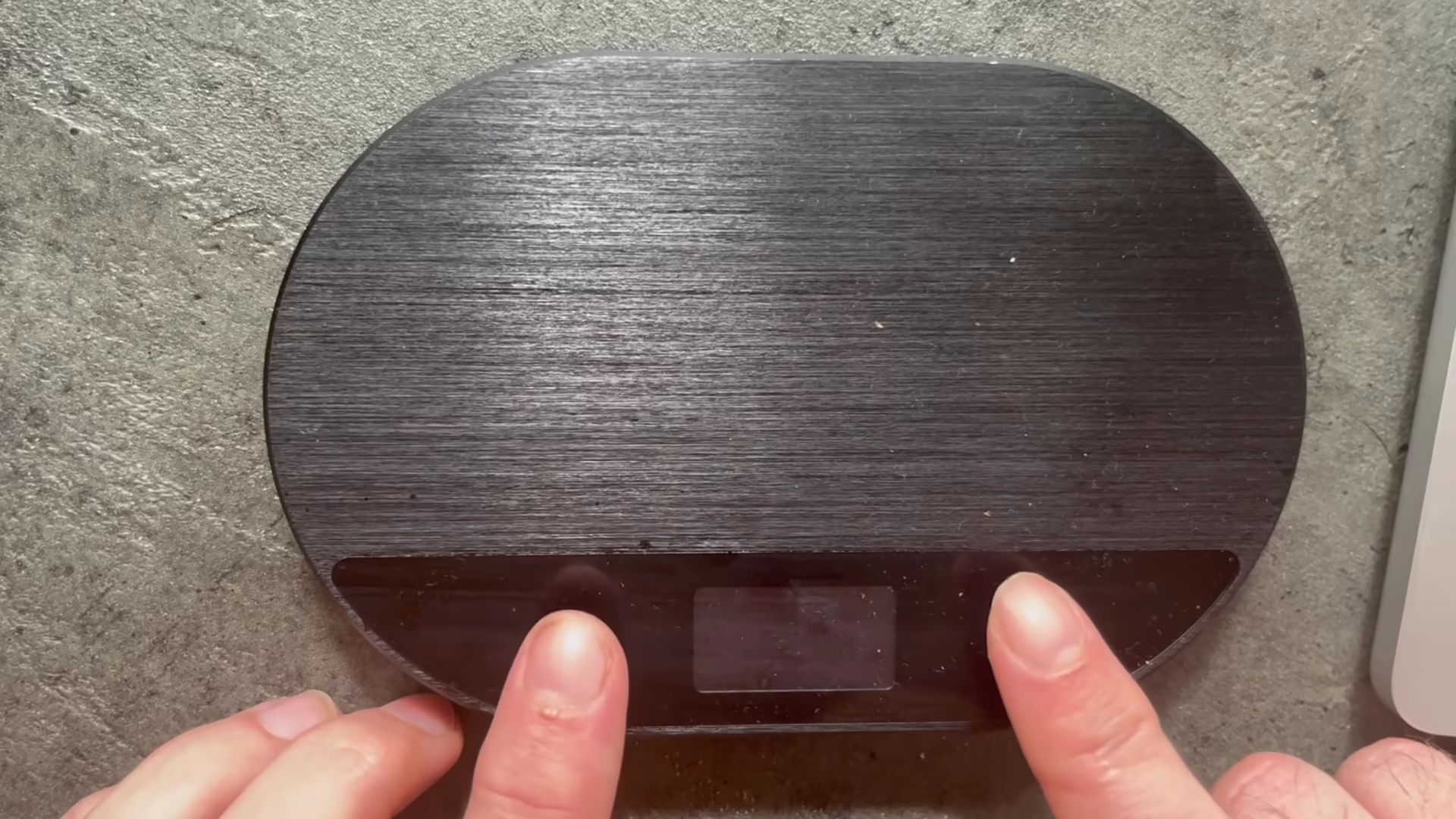
1. Enable WiFi on your Half Decent Scale
Enter "HDS Setup" mode, by pressing and holding both the O and the [] buttons until "HDS Setup" appears.
Navigate to the "WiFi Settings" menu entry and select it by pressing the [] button
Select the "WiFi On" menu entry. The display will show: "WiFi enabled, restart Scale"
Exit the menu and turn the scale off and on again.
2. Connect to the Half Decent Scale with your browser
a) If you did not configure the Wi-Fi settings before, Half Decent Scale will create its own Wi-Fi network.
Find the "Decent Scale" Wi-Fi network on your device and connect to it. The "Decent Scale" Wi-Fi password is "12345678".
b) If you have previously configured the WiFi settings for HDS to connect to your existing WiFi network, check that the chain link icon (⛓️) is displayed next to the Bluetooth indicator on the scale display.
Note that if you don't manage to connect to the scale with your mobile phone, try changing it to aviation mode. Then, re-try.
3. Optional: Connect hte scale to your home network
1.
Open the scale's web page.Connect your phone or computer to the scale's current Wi-Fi network. Open
http://hds.local. If you changed your scale's address because you are using several scales, connect to the renamed address. You can also connect to your scale's IP address. You can find the IP under
Setup > Connections > WiFi Status on the scale.
2. Insert the name of your home network. Scroll down a little on the page and enter its name in Network name.
3. Enter the new network's password. Use Show password to check it, then select Connect. You do not need to reset the Wi-Fi settings.
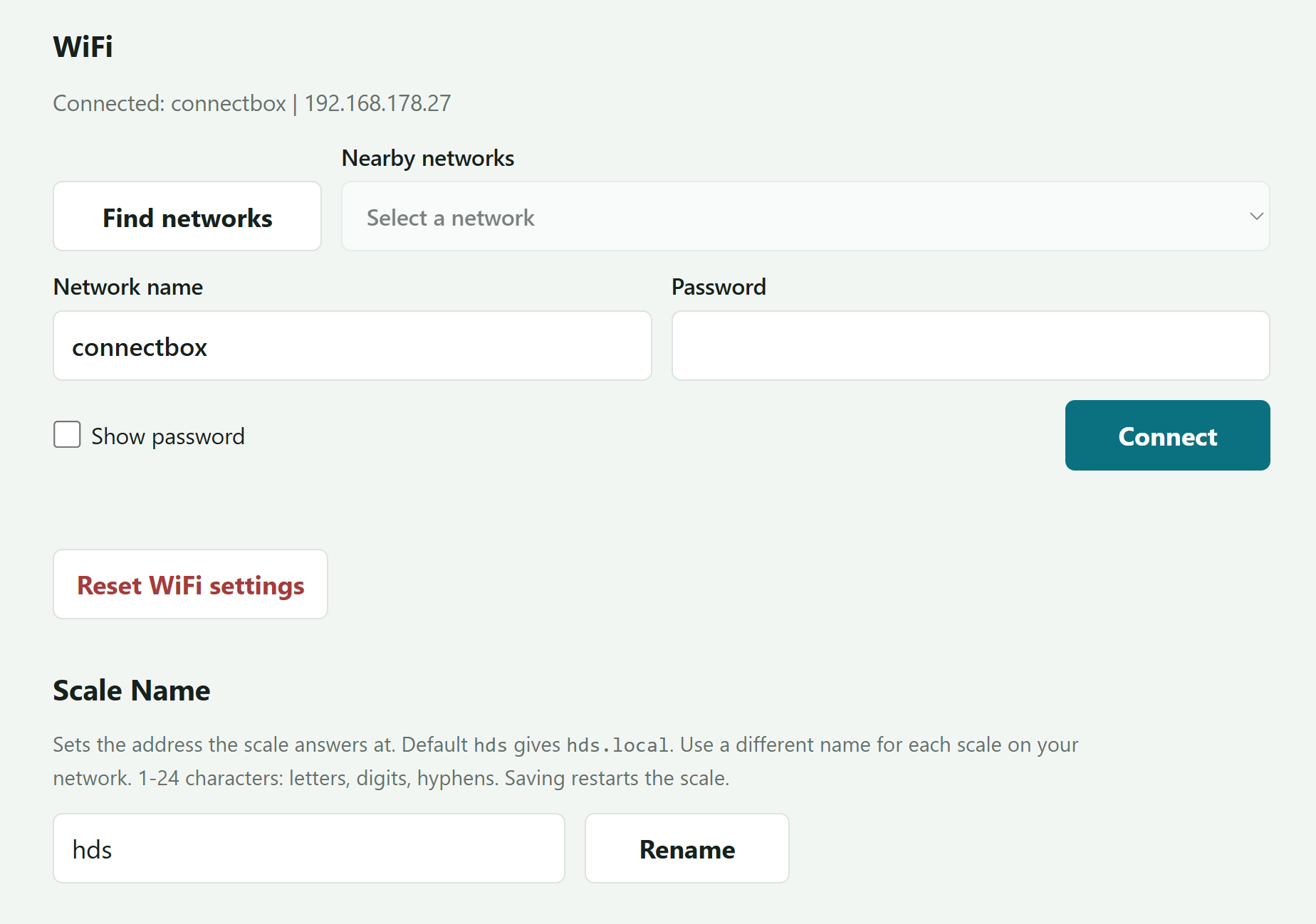
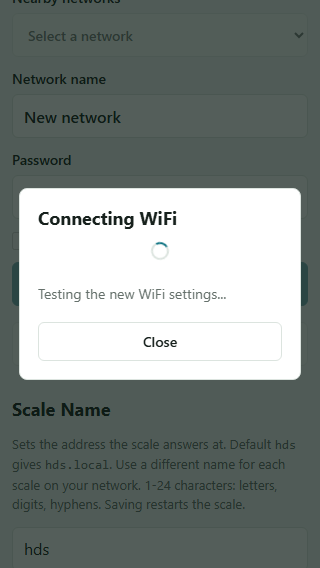
4. Click on "Connect". The scale will now test the network and then returns to report the result. The page may temporarily lose contact. Keep the browser open and the scale powered on; do not switch your phone or computer's Wi-Fi yet.
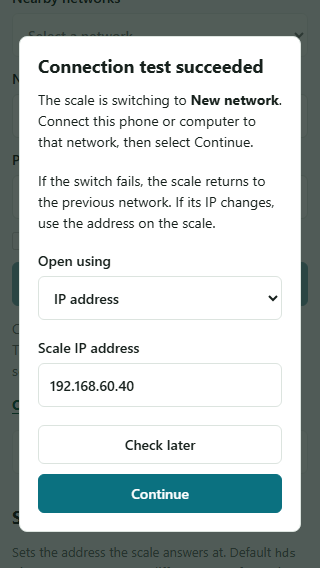
5. Wait for “Connection test succeeded.” The router will assign the scale a new IP address and display it.
6. Now, access this same IP address on your phone or computer. Leave the browser tab open and change networks in your device's Wi-Fi settings. Return to the browser and only click on "Continue" once your device is connected.
Note that you should keep the prefilled address unless the scale shows a different current IP. If it does, enter the new IP address before clicking on "Continue."
7. Confirm the change. Look for “Connected to [your network]. WiFi settings saved.” A successful connection test alone does not confirm that the final switch completed.
If the connection Fails: The scale keeps the previous Wi-Fi settings and attempts to reconnect to the original network. Rejoin that network and reopen the scale page.
Note that if the original network is unavailable, connect to DecentScale, using password 12345678, and open http://192.168.1.1. Enter the network name and password manually.
#HDS #WiFi #documentation #howto
